Knowledge Base
 Director
Content
Director
Content
How to use an external screen and touchscreen on Director Plus
Article ID: 0008020018
Director Plus


Q1: How to connect an external screen to Director Plus?
A: Director Plus can be connected to external screens through the HDMI OUT 1 and 2 ports. It can also use the USB-C Out port for DP output, to connect an external screen or other devices supporting DP signal. You can go to  > Settings > USB Out and then select DP mode.
- Connect a monitor, HDTV or other device to the HDMI OUT 1/2 port or USB OUT port of Director Plus. The external screen setting page will pop up on the device.
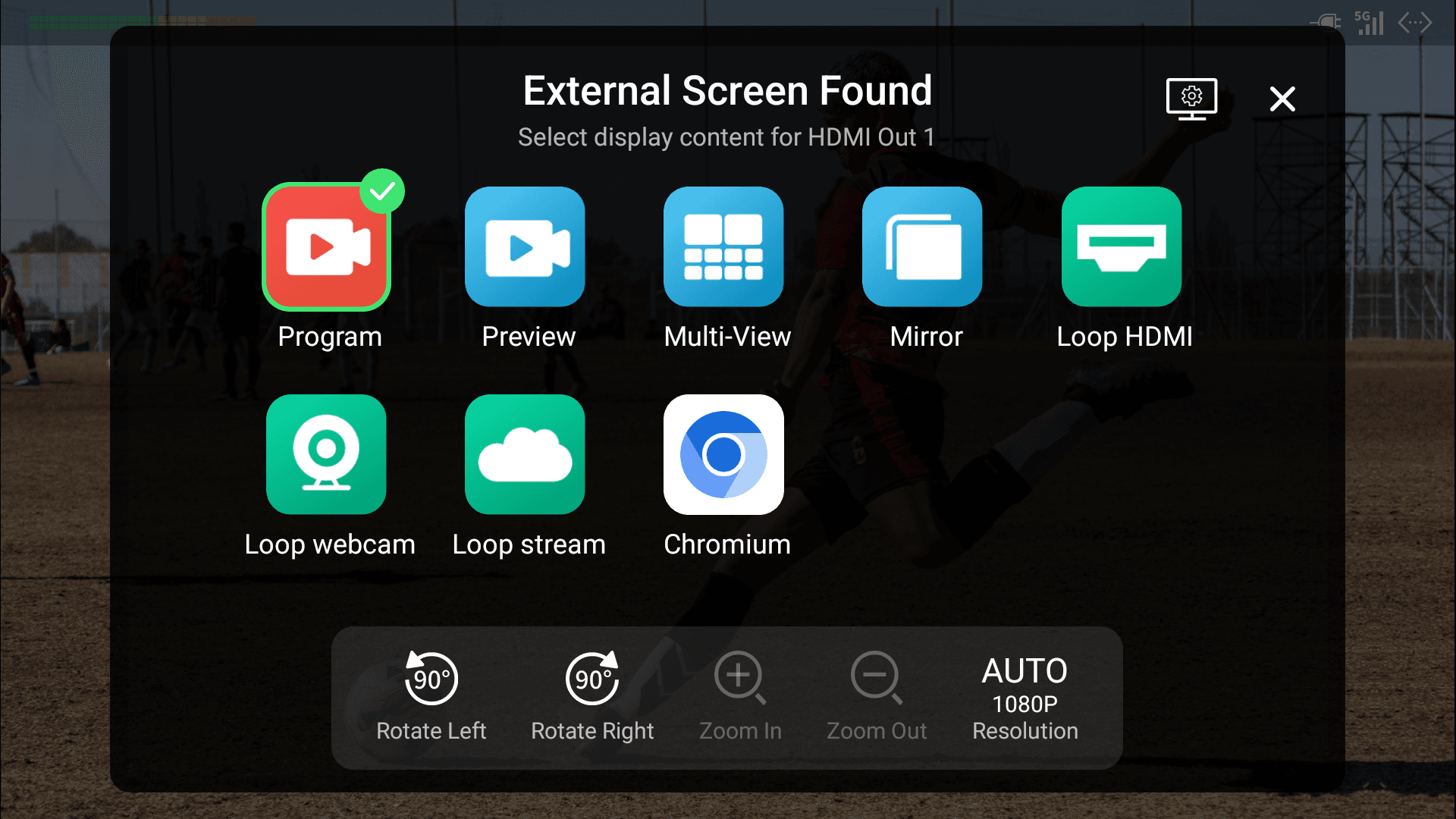
- Select the content to be displayed on the external screen.
- Program: output program signal
- Preview: output preview signal
- Multi-view: display 8 video boxes showing scene thumbnails at the bottom, and two larger boxes at the top, with the left one showing Preview view and the right one showing Program view.
- Mirror: duplicate all the elements on the main screen of Director Plus. If it is connected with a touchscreen, you can control the device via the touchscreen, referring to Q2.
- Loop HDMI: select to loop out the signal from HDMI 1/2/3/4.
- Loop WEBCAM: select to loop out the signal from WEBCAM 1/2.
- Loop Stream: select to loop out a stream signal or phone camera signal.
- Third-party App: select to loop out the signal from a running third-party app. If it is connected with a touchscreen, you can control the app via the touchscreen, referring to Q2.
- Select the rotation angle to fit for the external screen: rotate 90° to left, or rotate 90° to right.
- For the third-party app, you can tap +/- to zoom the image.
- Tap "Resolution" to set the output resolution. It uses auto settings by default.
- (Optional) Tap
 to go to the settings page of HDMI Out or USB Out, to implement more settings.
 - Tap X to go back.
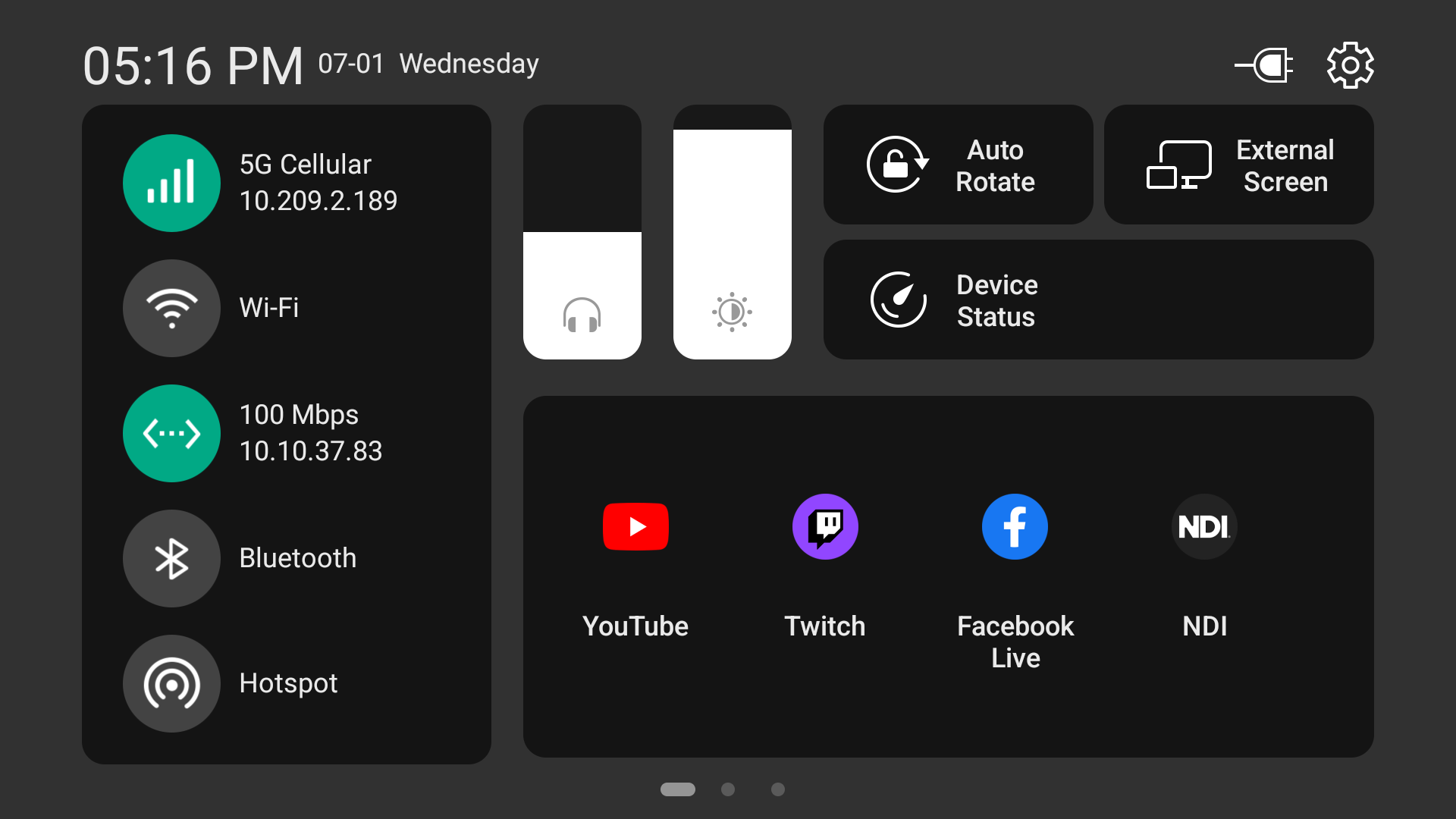
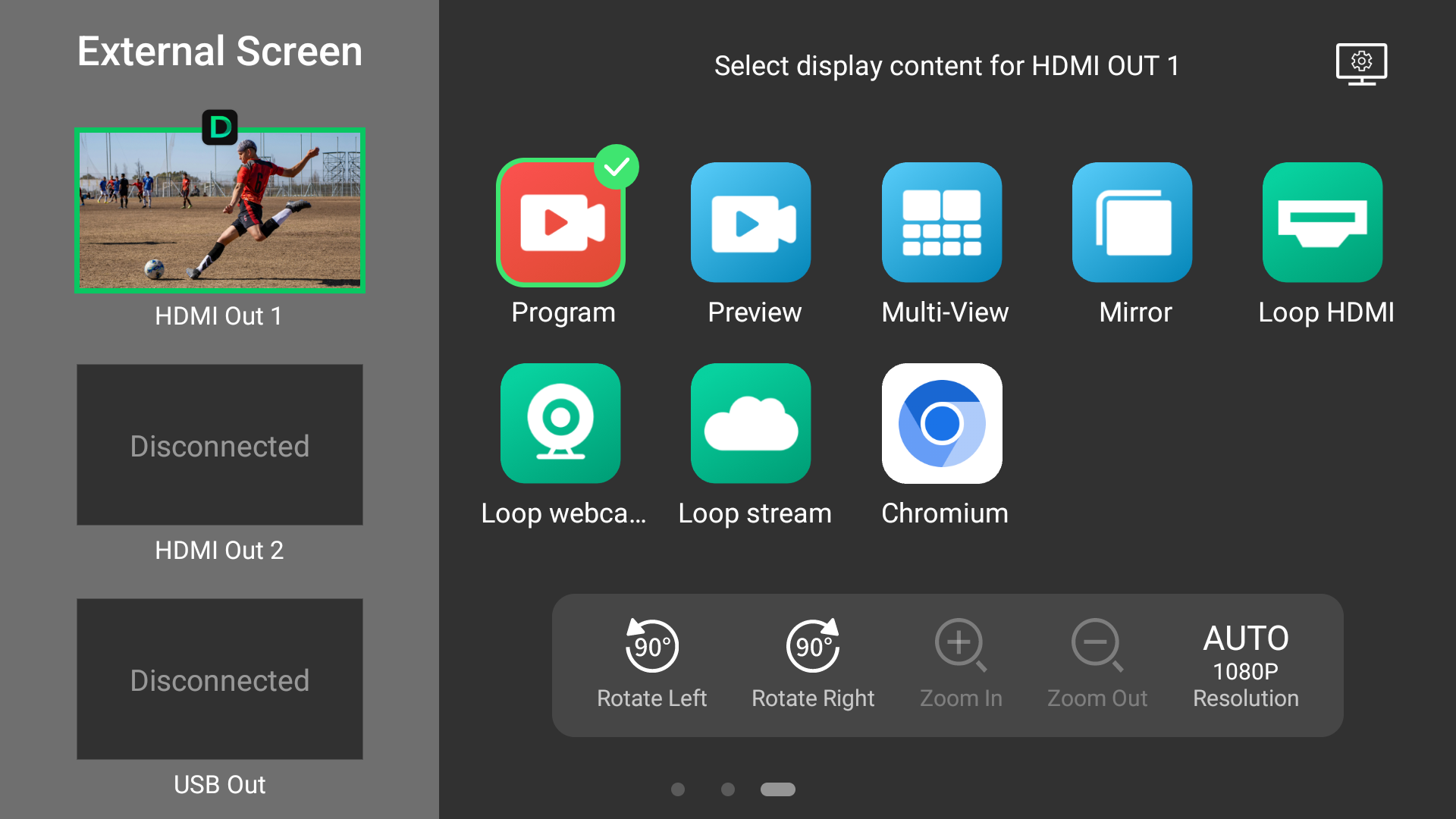
- To change the settings of the external screen, swipe down from the top-left of the device screen, and then tap External Screen on the Control Center to open the external screen setting window. Or swipe down from the top-right of the device screen to open the external screen setting window.
Q2: How to control Director Plus with an External Touchscreen
A: When Director Plus is connected to an external touchscreen in Mirror mode, you can control the device directly from the touchscreen. A larger display provides a more comfortable workspace for scene editing, annotation, and other operations.
If an app is displayed through the video output, you can also control the app from the touchscreen.
Requirements
-
- The touchscreen must support driver-free HID multi-touch.
- Select Mirror or the desired App as the display output.
Connect via HDMI OUT
-
- Connect the HDMI OUT port on Director Plus to the HDMI input of the touchscreen.
- Connect the touchscreen's Touch (USB) port to any USB port on Director Plus.
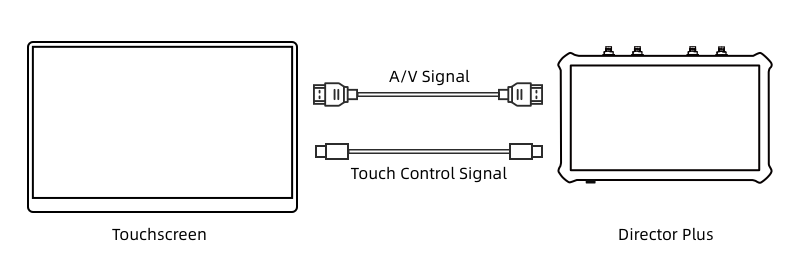
- If touch functionality does not work, refer to your touchscreen's user manual for any required settings.
Connect via USB-C OUT
-
- Go to > Settings > USB Out and then select DP mode.
- Connect the USB-C OUT port on Director Plus directly to the touchscreen using a Type-C to Type-C cable.
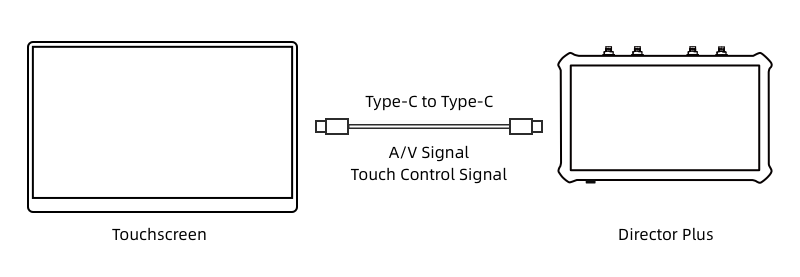
- If your touchscreen is connected through a USB-C adapter, also connect the touchscreen's Touch (USB) port to any USB port on Director Plus.
- If touch functionality does not work, refer to your touchscreen's user manual for any required settings.
- Go to
Notes
-
- Set the touchscreen to full-screen mode.
- Make sure the touchscreen uses the same display orientation as Director Plus.
Has your problem been solved?