- Device panel menu button:
- Press the device panel menu button to bring up the OSD menu.
- Rotate the menu button left or right to navigate between options.
- Press the device panel menu button again to confirm the selected option.
- External keyboard:
- Press the Enter key on the external keyboard to bring up the OSD menu.
- Press the Up and Down arrow keys to navigate between options.
- Press the Enter key on the external keyboard again to confirm the selected option.
- External mouse:
- Press the left mouse button to bring up the OSD menu.
- Move the mouse to navigate between options.
- Press the left mouse button again to confirm the selected option.
Configuration via OSD Menu
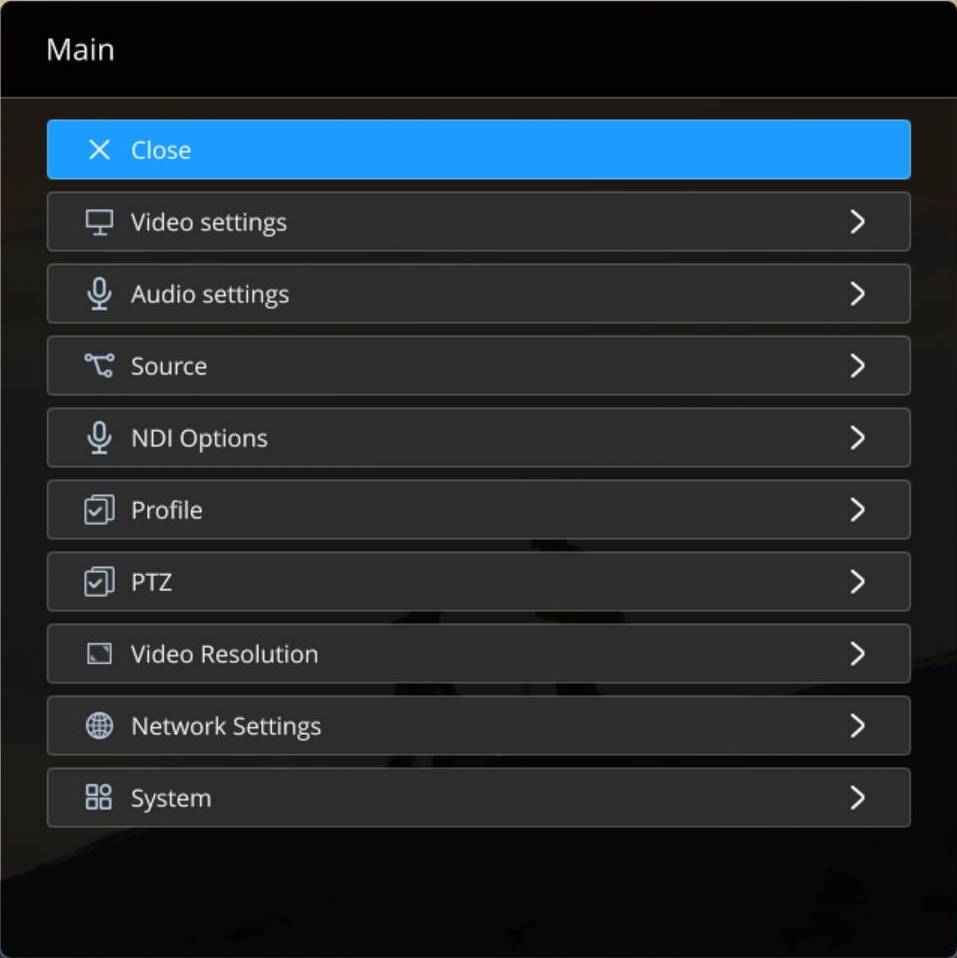
Main Menu
- Close
Select to close the OSD menu.
- Video settings
Select to enter video parameter configuration. For details, see Main Menu > Video.
- Audio settings
Select to enter audio parameter configuration. For details, see Main Menu > Audio.
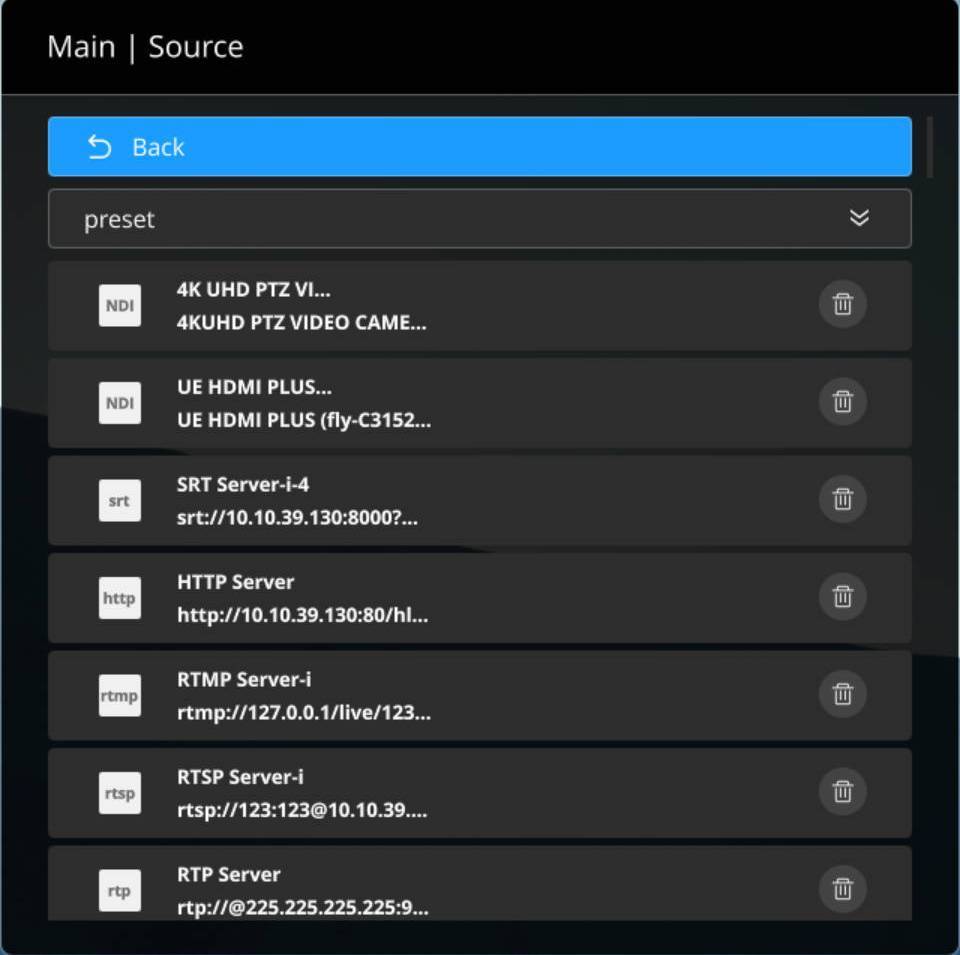
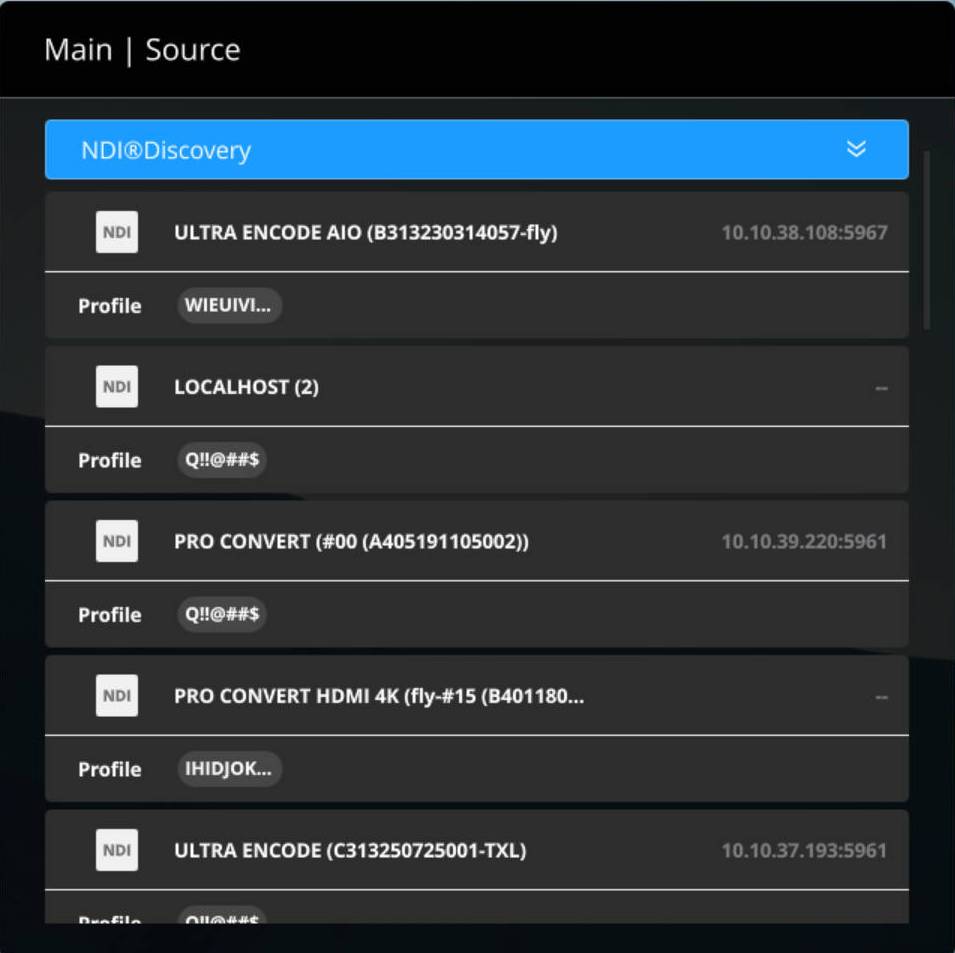
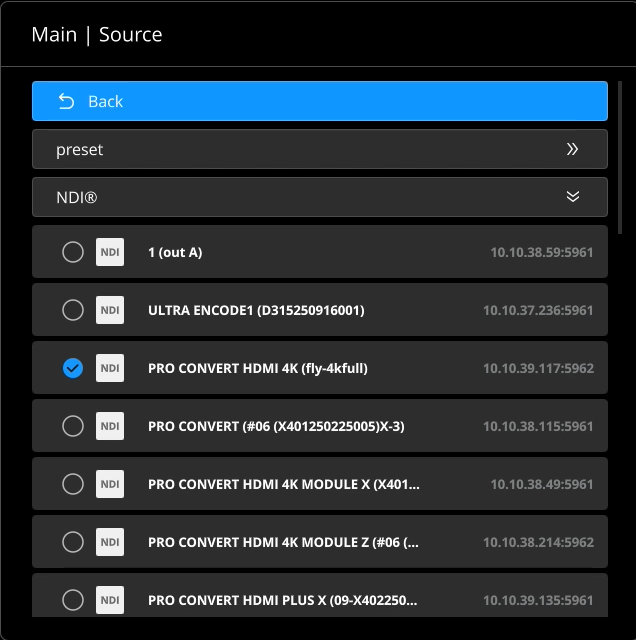
- Source
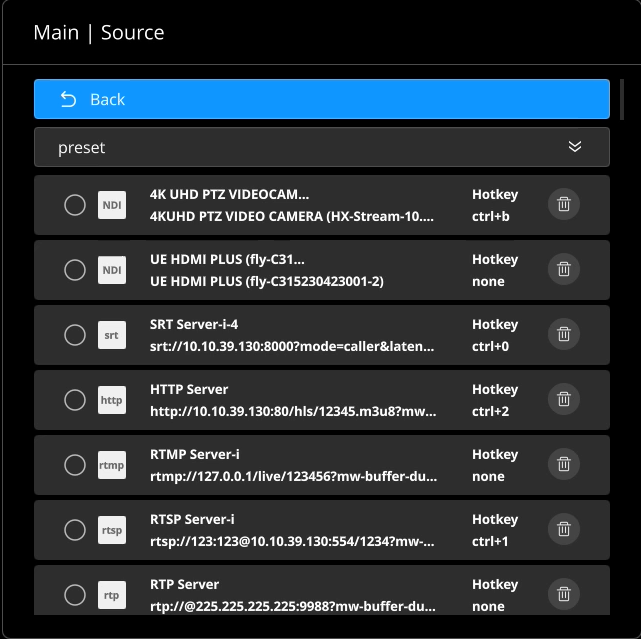
Select to open the video source list and choose the source to decode. Hotkeys are supported for quick source switching. For the source hotkey mapping, see Web UI Preset List.
See Web UI > Sources to add video sources manually in the Web UI.
- NDI Options
Select to configure NDI access management. For details, see Main Menu > NDI Options.
- Profile
Select to enter Profile and switch the output layout. For details, see Main Menu > Profile.
- PTZ
Note: This feature is available only when the decoded source supports PTZ.
Select to configure PTZ parameters. For details, see Main Menu > PTZ.
- Video Resolution
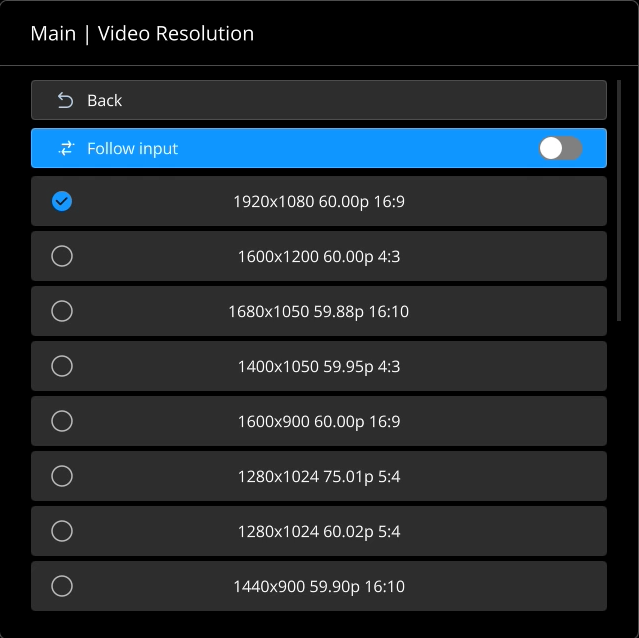
Select to open the resolution list and set parameters for the connected output display.
After a display device is connected, the decoder automatically lists the supported resolution formats. The available resolutions may vary by display device.
It is recommended to use the default resolution or select one as needed. For details, see Main Menu > Video Resolution.
- Network Settings
Select to view and configure the device IP address. For details, see Main Menu > Network.
- System
Select to view device information such as the IP address. For details, see Main Menu > System.
Video
- Back
Select to return to the previous menu.
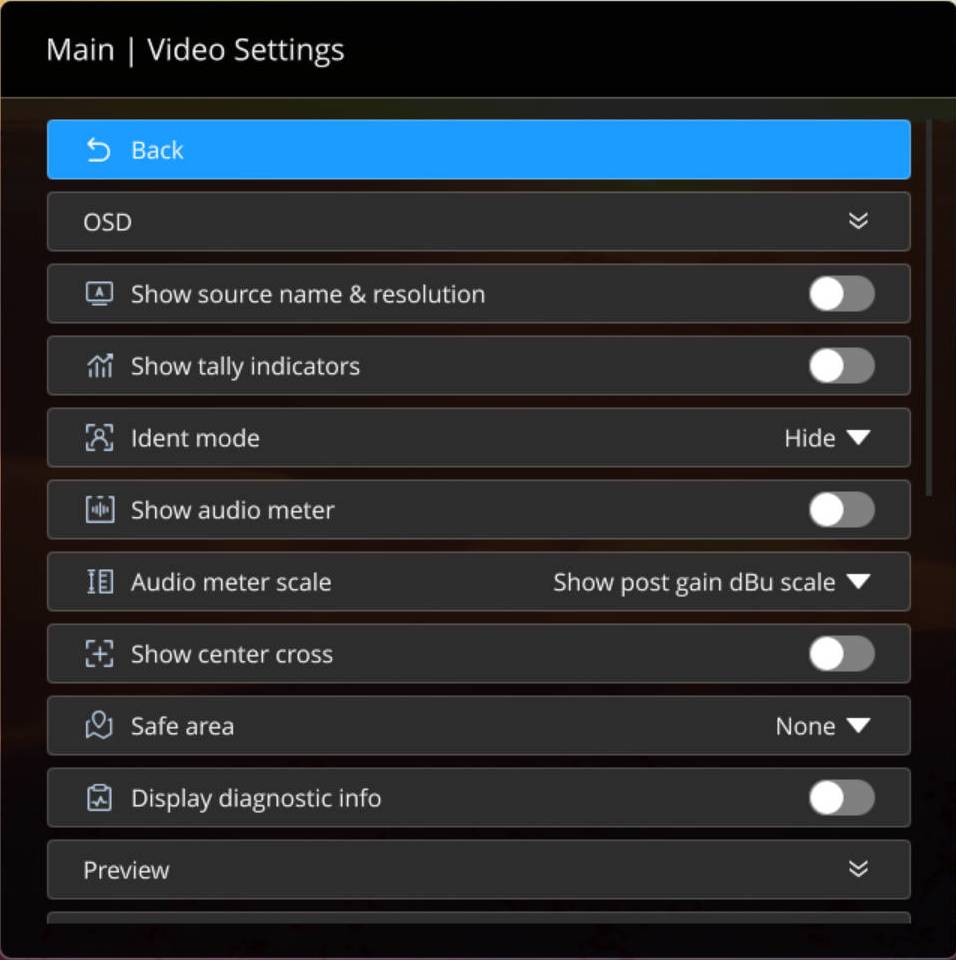
- OSD
- Show source name & resolution
When enabled, the source name and resolution are displayed at the top center of the output display. Disabled by default.
- Show Tally indicators
Note: This feature is supported only when the source is a NDI signal.
When enabled, the preview/program status of the current source is displayed at the top of the output display. If the source is in preview, PREVIEW is shown in green; if the source is on program, PROGRAM is shown in red; if both preview and program, both statuses are displayed, otherwise, nothing is displayed.
- Show source name & resolution
- Ident mode
Sets the text displayed at the bottom center of the output display to help distinguish multiple outputs. The identifier is hidden by default.
Show ident text: Displays custom text at the bottom center of the device output.
Custom text can be used to differentiate decoders. The valid length is 1 to 32 characters.
Show device name: Displays the decoder name at the bottom center of the output.
Disabled by default. When enabled, the audio level meter is displayed on the left side of the output display.
Select the audio scale based on your scenario, and choose whether to show the scale after gain. Hidden by default.
When Audio convert mode on the Audio section is set to EBU, available modes include Hide, Show post gain dBu scale, and Show post gain dBFS scale.
When Audio convert mode on the Audio section is set to SMPTE, available modes include Hide, Show post gain dBVU scale, and Show post gain dBFS scale.
Displays a white horizontal/vertical crosshair on the output display. Hidden by default.
Helps users keep key content within the frame. The safe area is hidden by default. You can select 80% center area, 4:3 center area, or Square center area.
Overlays the status of the currently decoded source on the output video. Hidden by default.

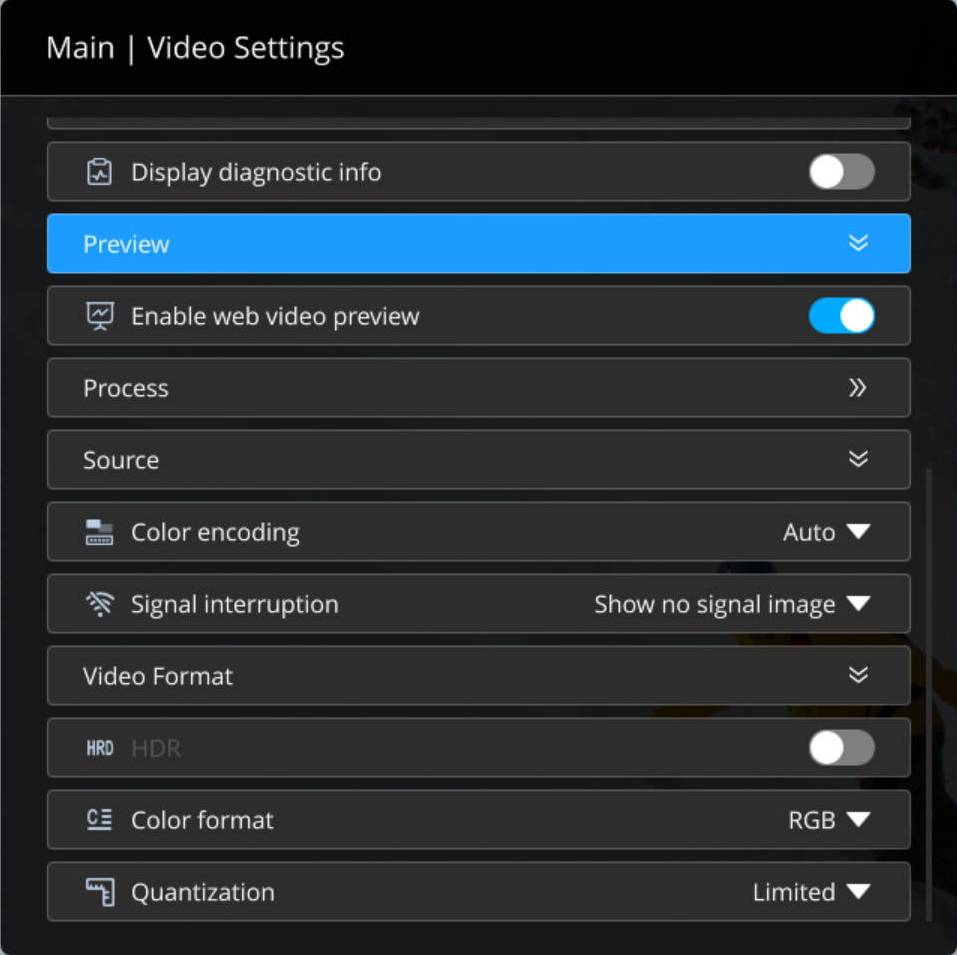
- Preview
- Enable Web video preview
Web video preview is enabled by default. If disabled, video preview in the Web UI will be unavailable.
- Enable Web video preview
- Process
-
Horizontal flip
When enabled, the video is mirrored horizontally. Disabled by default.
-
Vertical flip
When enabled, the video is flipped vertically. Disabled by default.
Deinterlace mode
Default is "Bob". Options:
- Weave: Combines two consecutive fields into one frame. Suisectionle for relatively static images or scenarios requiring original field data.
- Bob: Duplicates a single field to form a full frame. Suisectionle for dynamic content.
- Blend: Generates progressive frames by blending adjacent fields. Suisectionle for static or slow-motion content where reducing flicker/jaggies is preferred over preserving fine motion detail.
Aspect ratio mode
Default is Letterbox/Pillarbox mode. Options:
- Letterbox/Pillarbox: Preserves the source aspect ratio by adding black borders to fit the output display. Letterbox adds borders at the top/bottom; Pillarbox adds borders on the left/right. This is the default.
- Fullscreen: Stretches the image to fill the entire display.
- Scale/Crop: Scales and crops the source to match the output aspect ratio.
- Source
-
Color encoding
Sets the standard to BT.601, BT.709, or BT.2020. Default is Auto, where the decoder automatically adapts based on the signal type: SD uses BT.601 and HD uses BT.709.
-
Signal interruption
When switching sources, you can choose to display a no-signal screen, black screen, last frame, or disable signal output. If signal output is disabled, the display device may enter power-saving mode when there is no signal.
-
- Video format
-
HDR
If the connected display supports HDR10, you can enable HDR to output HDR10 video. Disabled by default.
-
Color format
Sets the output color format to RGB, YUV444, or YUV422. Default is RGB. Select an appropriate format based on your display device.
-
Quantization
When the color format is set to RGB, you can set the range to Full (default) or Limited.
-
-
Audio

- Back
Select to return to the previous menu.
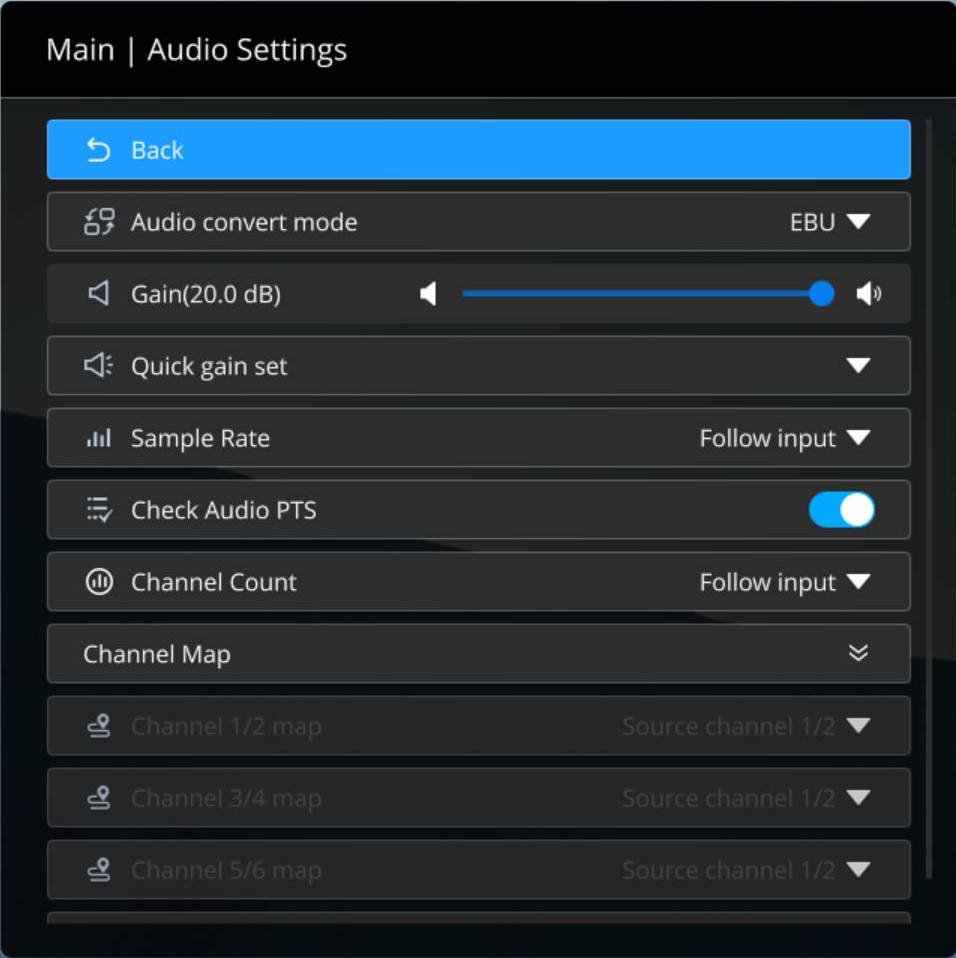
- Audio convert mode
Two modes are supported: EBU and SMPTE. Default is SMPTE.
- Gain
Select and adjust the slider position to adjust gain. Range: -100.00 dB to 20.00 dB.
- Quick gain set
Select +20 dB, +10 dB, +0 dB (default), -20 dB, -40 dB, or Mute (-inf dB) from the drop-down list.
- Sample rate
Select an appropriate sample rate based on your scenario. Options: Follow input, 32000Hz, 44100Hz, 48000Hz, 88200Hz, 96000Hz. Default is Follow input.
- Check audio PTS
Audio PTS (Presentation Time Stamp) checking is enabled by default. If the source audio clock is unreliable, it is recommended to disable this feature.
- Channel Count
Select the number of audio channels based on your scenario. Options: Follow input, 2 channels, 4 channels, 8 channels. After setting the channel count, configure the mapping between input and output channels. Default is Follow input.
-
When Channel Count is set to 2 channels, you can only select the mapped source channel group for output group 1/2.
-
When Channel Count is set to 4 channels, you can select the mapped source channel group for output groups 1/2 and 3/4.
-
When Channel Count is set to 8 channels, you can select the mapped source channel group for output groups 1/2, 3/4, 5/6, and 7/8.
-
Sources
Sources with Profile
Sources with Hotkey
- Back
Select to return to the previous menu.
- Source
Select the stream to be decoded, including RTSP, Unicast, Multicast, RTMP (Pull/Push), UDP, RTP, HTTP (including HTTP and HLS streams), or SRT.
When Profile is not enabled, the source name and hotkey are displayed; when Profile is enabled, the source name is displayed, and the decoded source selected by Profile will also display the Profile name, and you need to switch sources in Profile.
NDI Options
- Back
Select to return to the previous menu.
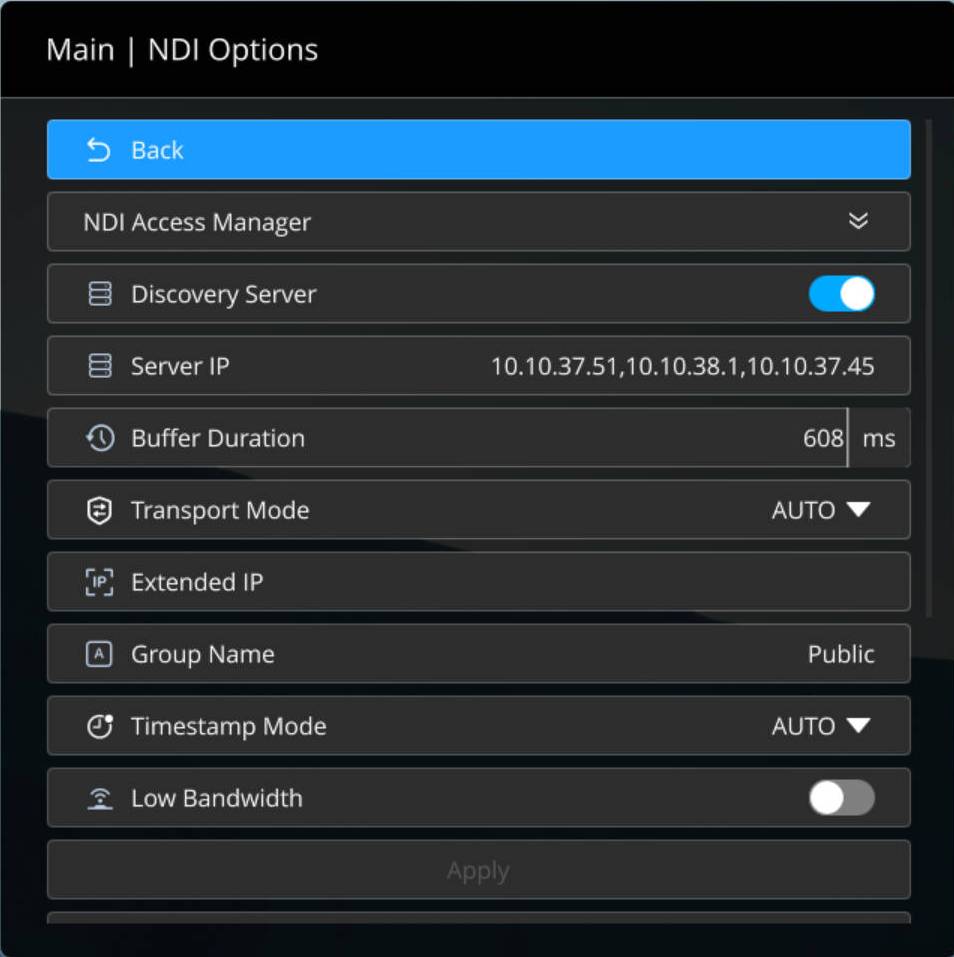
- NDI Access Manager
After configuration, the relevant parameters are automatically applied to newly added NDI sources. You can also modify each parameter individually.
- Discovery server
When Discovery server is enabled, senders and the decoder on different subnets can still be discovered automatically as long as they can ping each other.
In this case, set Server IP address to the address of the server running the discovery service. This feature is disabled by default.Pro Convert devices include a built-in Discovery Service that starts automatically on boot and can be used as a discovery server without additional configuration.
- Server IP
Multiple NDI discovery servers are supported. Separate addresses with commas.
- Buffer Duration
Range: 1–1000 ms. Default: 60 ms. To ensure smooth output, it is recommended to set the buffer time greater than the Jitter time shown in Device status. If low latency is required, reduce the buffer time. Unless otherwise needed, use the default value.
- Transport Mode
Default is Auto. Supported modes:
- RUDP (Unicast): Receives audio/video packets via reliable unicast UDP.
- UDP (Unicast): Receives audio/video packets via unicast UDP.
- UDP (Multicast): Receives audio/video packets via UDP multicast. Click Advanced settings to specify the "Multicast source network segment" for cross-subnet multicast transmission.
- TCP (Multi-connection): Receives audio/video packets via multiple TCP ports.
- TCP (Single-connection): Receives audio/video packets via a single TCP port.
- Extended IP
Multiple IP addresses are supported. Separate addresses with commas to extend the discovery range for NDI sources.
- Group Name
- Group names are case-insensitive and can include A–Z, a–z, 0–9, and special characters including _-. The decoder can receive signals from multiple groups; in this case, enter multiple values separated by commas.
- The default group name is public.
- Timestamp Mode
Default is Auto. Timecode and timestamp are supported. It is recommended to use the default setting. If synchronization issues occur, contact Technical Support for configuration recommendations.
- Low Bandwidth
When network bandwidth is insufficient and smooth output cannot be achieved, it is recommended to enable this switch. When enabled, if the source resolution is greater than 2048 x 1080, the output width/height are reduced to approximately 1/4 of the source (i.e., total resolution reduced to 1/16). In other cases, the output width/height are reduced to approximately 1/2 of the source (i.e., total resolution reduced to 1/4). The frame rate is also reduced to about 15 fps.
- Discovery server
- Select Apply to save the configuration.
Profile
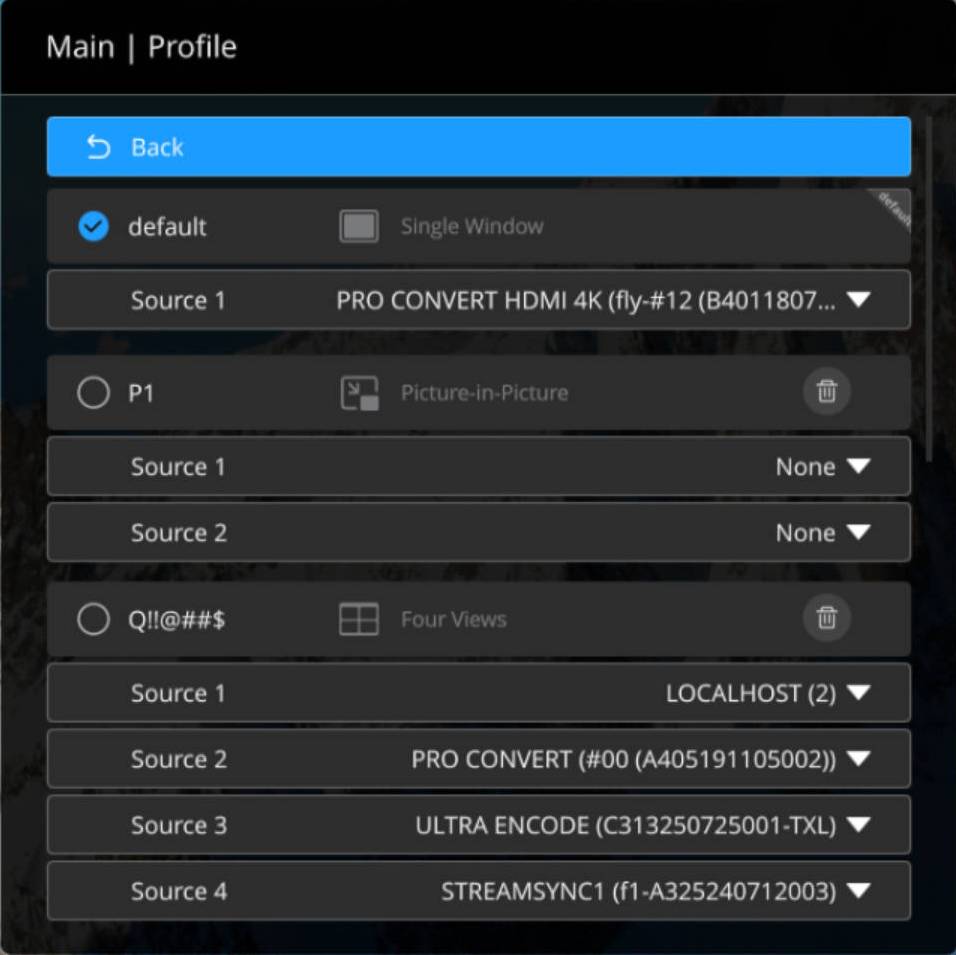
Switch the device output layout. Single-screen, picture-in-picture, and quad-screen are supported. When this feature is available in the OSD menu, hotkey source switching is not available.
- Select
to apply the current profile immediately. - Select
to delete the current profile. This operation cannot be undone; proceed with caution. It is recommended to add profiles via the Web GUI: add a Profile. - Select a source for each pane: None, preset sources, and NDI sources are supported. It is recommended to add sources via the Web GUI: add Sources.
- To change output audio, use the Web GUI: set output Audio.
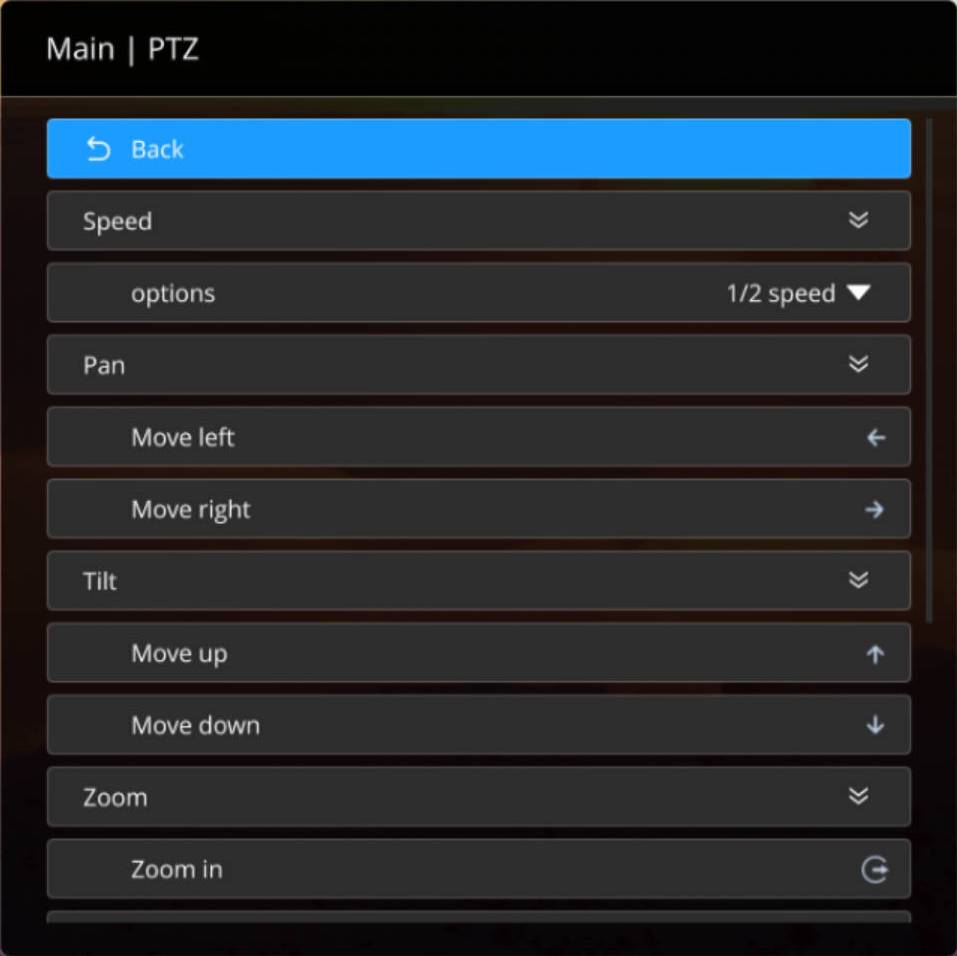
PTZ
Note: PTZ parameters are displayed and can be configured only when the decoded source supports PTZ.

- Back
Select to return to the previous menu.
- Speed
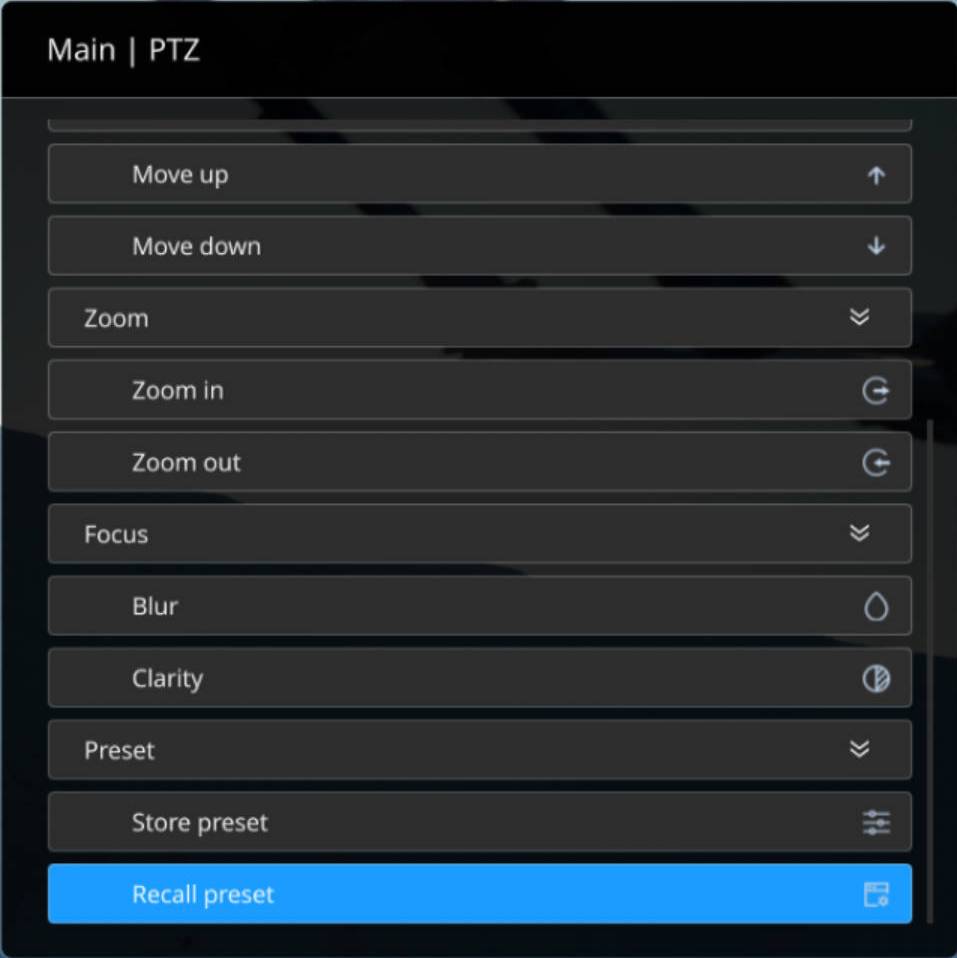
Select the camera movement speed, options are Full, 1/2, 1/4, 1/8, 1/16, 1/32, 1/64, or 1/128 speed.
- Pan
Select move left or right to move the camera until the desired position is reached.
- Tilt
Select move up or down to move the camera until the desired position is reached.
- Zoom
Select to zoom in/out.
- Focus
Adjust image focus to clarity or blur.
- Preset
After moving the camera to the desired position, click Store preset, then swipe up/down to select a preset name to save the current position as a camera preset. Up to 9 preset points are supported.
- Recall preset
If preset point data has been saved in the camera, select one as needed. The camera will automatically move to the preset position for quick setup.
Video Resolution
After a display device is connected, the Video Resolution section automatically shows the resolution formats supported for output. The available resolutions may vary by display device.
It is recommended to use the default resolution or select one as needed.
Network
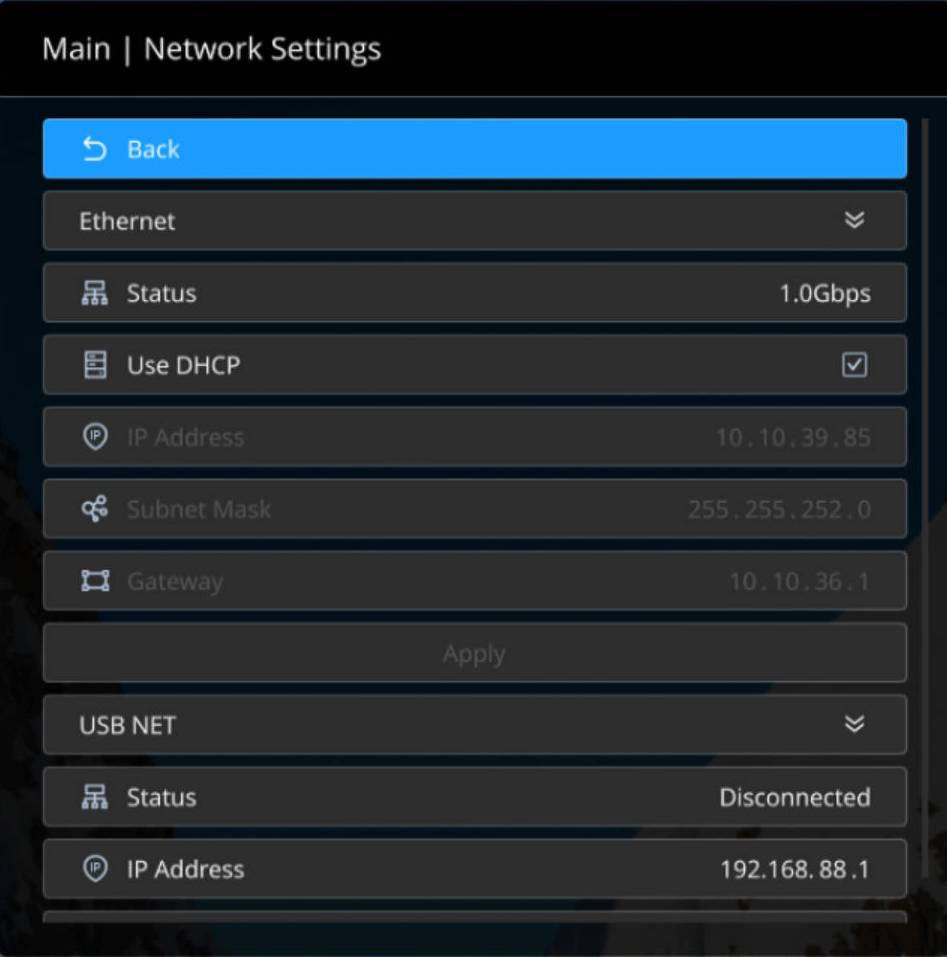
- Ethernet
Status displays the current network port connection status.
Disable Use DHCP to manually enter the IP address, Subnet mask, and Gateway.Verification: Enter the configured IP address in a web browser and confirm that the Web UI opens.
- USB NET
Status displays the current network port connection status.
Select the IP address. In the pop-up numeric window, choose and enter a new address, then select "Done".
Verification: Enter the configured IP address in a web browser and confirm that the Web UI opens.
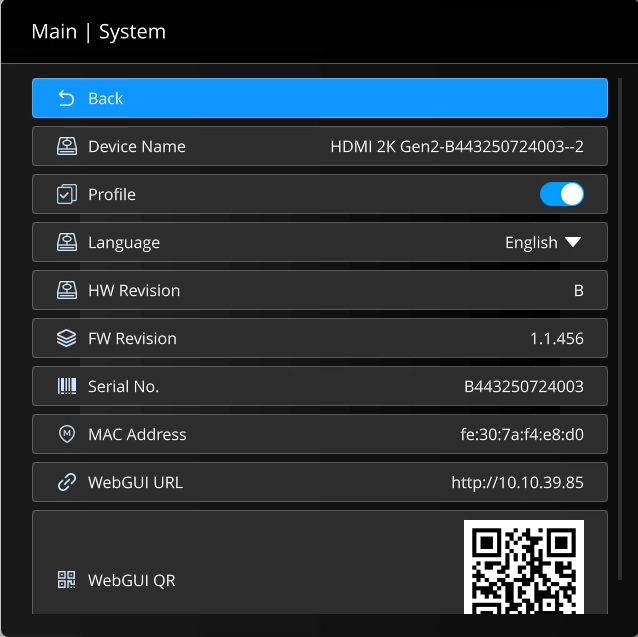
System
- Back
Select to return to the previous menu.
- Device Name
Displays the current device name. See Set Device Name.
- Profile
Enable Profile to display the Profile section in the navigation bar. Users can configure multi-view output modes such as Picture-in-Picture and Quad Split.
- Language
Sets the OSD menu language. Chinese and English are supported.
- Hardware Revision
Displays the hardware version of the device.
- Firmware Revision
Displays the firmware version of the device.
- Serial No.
Displays the device serial number, which matches the serial number printed on the device chassis.
- MAC Address
Displays the MAC address of the device.
- WebGUI URL
Displays the device IP address. Enter this address in a web browser to open the Web UI and configure the device on a PC.
- WebGUI QR
Scan the QR code to open the Web UI. The scanning device must be on the same network segment as the decoder.