Multi-View Output (Profile)
The administrator user needs to enable the switch in
"System > General > Profile" for the Profile tab to appear in the navigation bar.
When the Profile function is enabled, the hotkey function for data sources is disabled. Supports adding up to 9 Profiles.
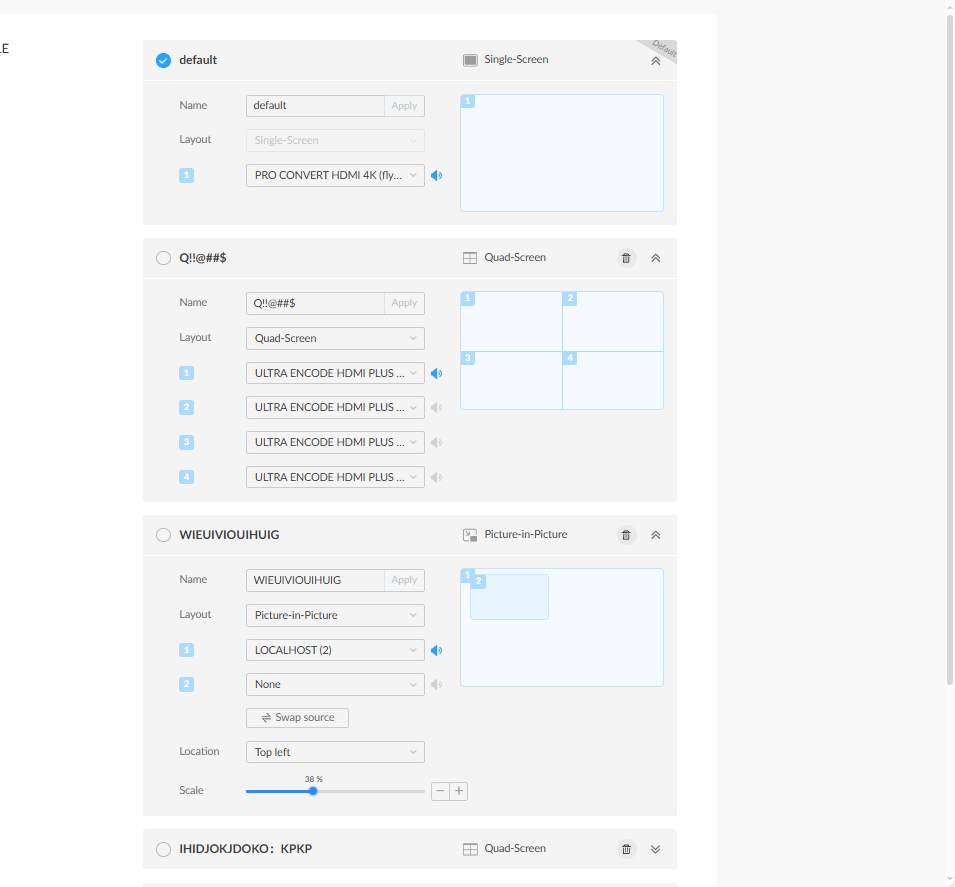
In the Profile tab, you can specify multi-view output and assign data sources to each view. Supports single-screen, picture-in-picture, and quad-screen output.
By default, it includes a "default" display scheme: single-screen display with no video source selected.
- Name Specifies the profile name for easier management when multiple profiles are used. Click "Apply" to activate the configuration.
- Layout Supports Single-view, Picture-in-Picture, and Quad Split output.
- Select a data source for each window: None, Preset Sources and NDI Sources.
- Enable
![]() to output audio from the selected source. By default, audio follows the first source. In multi-view output, only one audio program can be output.
to output audio from the selected source. By default, audio follows the first source. In multi-view output, only one audio program can be output.
- In Picture-in-Picture mode,
- Click
![]() to swap the two sources.
to swap the two sources.
- Adjust the PiP position. Custom positioning is also supported.
- Supports adjusting the display ratio of the picture-in-picture.
- Click
![]() to select the current profile and apply it immediately.
to select the current profile and apply it immediately.
- Click
![]() to delete the current profile.
to delete the current profile.
 to output audio from the selected source. By default, audio follows the first source. In multi-view output, only one audio program can be output.
 to swap the two sources.
 to select the current profile and apply it immediately.
 to delete the current profile.