- From the navigation menu, click the Dashboard tab.
-
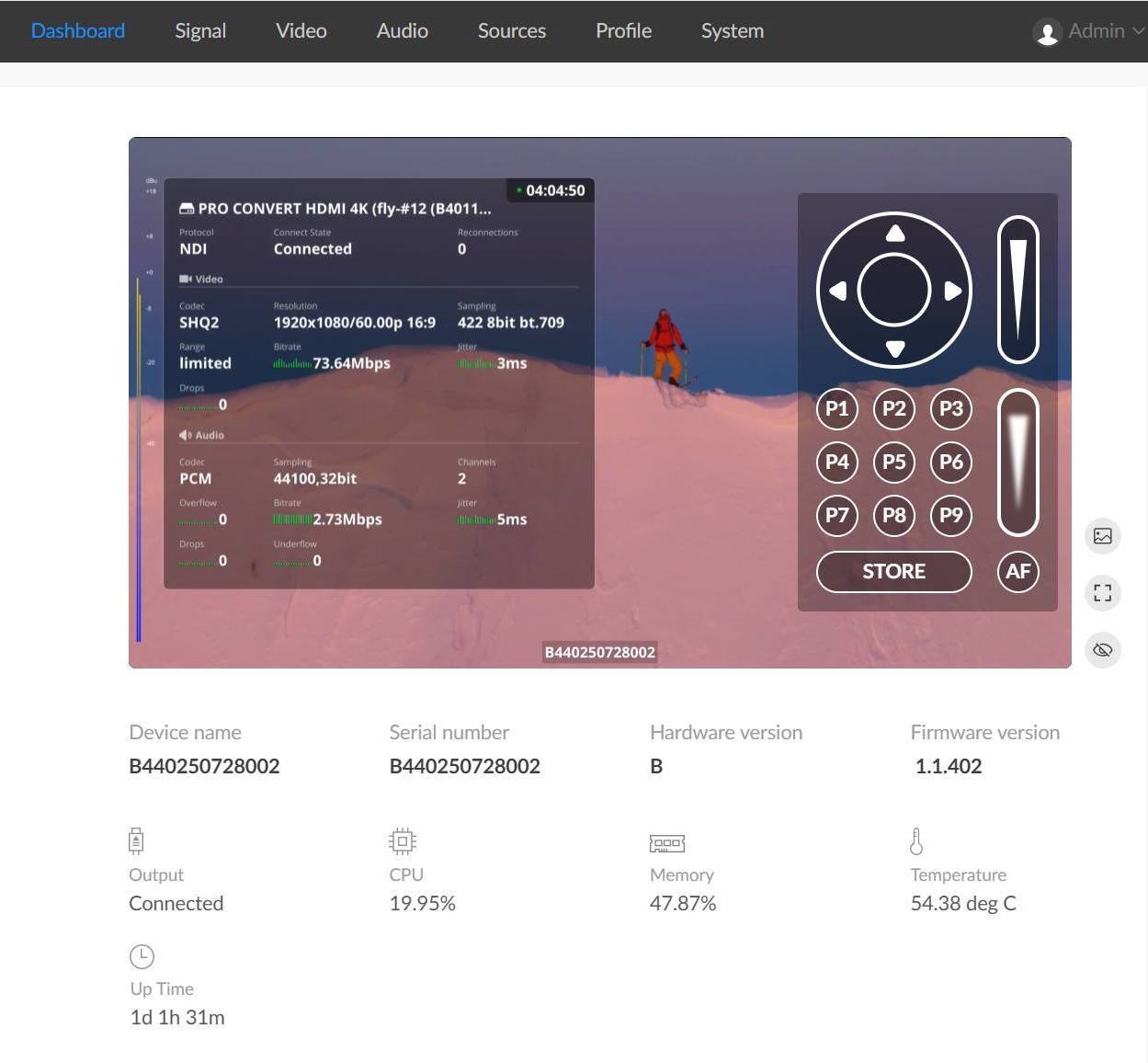
Preview Decoded Output Video
Click
 to open a 1 frame-per-second thumbnail preview.
Click
 to open live video preview.
Click
 to enter full-screen preview.
Click
 to disable preview and reduce system load and bandwidth usage.
Click
 to enable preview.
If the decoded source contains PTZ control metadata, PTZ control is available directly from the preview window.
-
View basic information
![]()
-
Device name displays the Pro Convert device name.
Only administrators can modify the device name under System > General. Refer to Set Device Name.
- Serial number displays the device serial number, which matches the label on the device enclosure.
- Hardware version displays the hardware revision.
-
Firmware version displays the current firmware version.
Only administrators can upgrade firmware under System > Firmware. Refer to Upgrade Firmware.
-
Device name displays the Pro Convert device name.
-
View Current Operating Status
- Output indicates whether an output display device is connected.
- CPU displays current CPU utilization as a percentage. More complex decoding tasks increase CPU usage.
- Memory displays current memory usage.
-
Core temperature displays the temperature of the device SoC.
To prevent overheating, ensure proper ventilation and moderate ambient temperature. When the core temperature approaches 85 °C, cooling is recommended. - Up time displays the elapsed time since the device was last powered on.
-
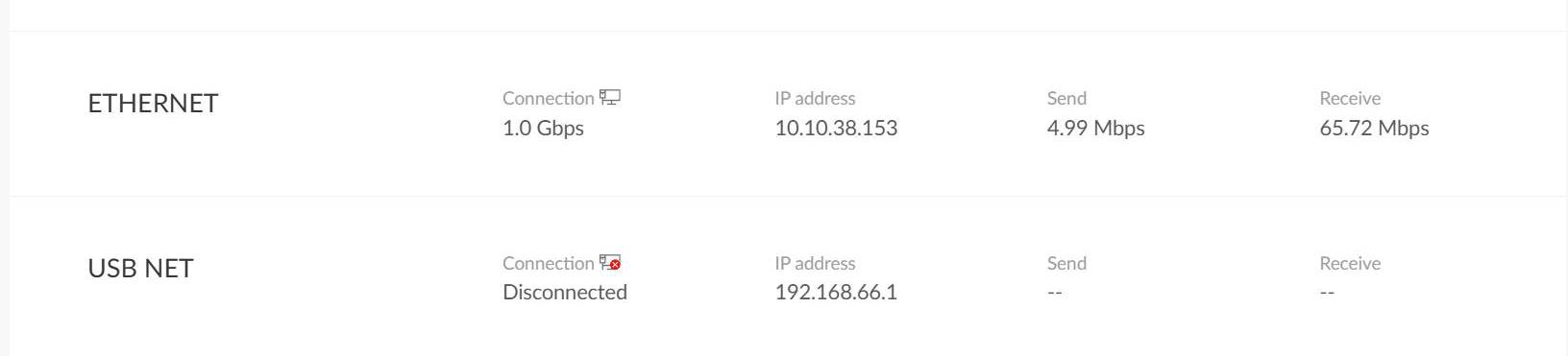
View Ethernet / USB NET status
![]()
- Connection displays the current network connection status.
-
IP address displays the current IP address.
Only administrators can modify IP settings under System > Network. - Send displays the current network connection transmit rate.
- Receive displays the current network connection receive rate.
-
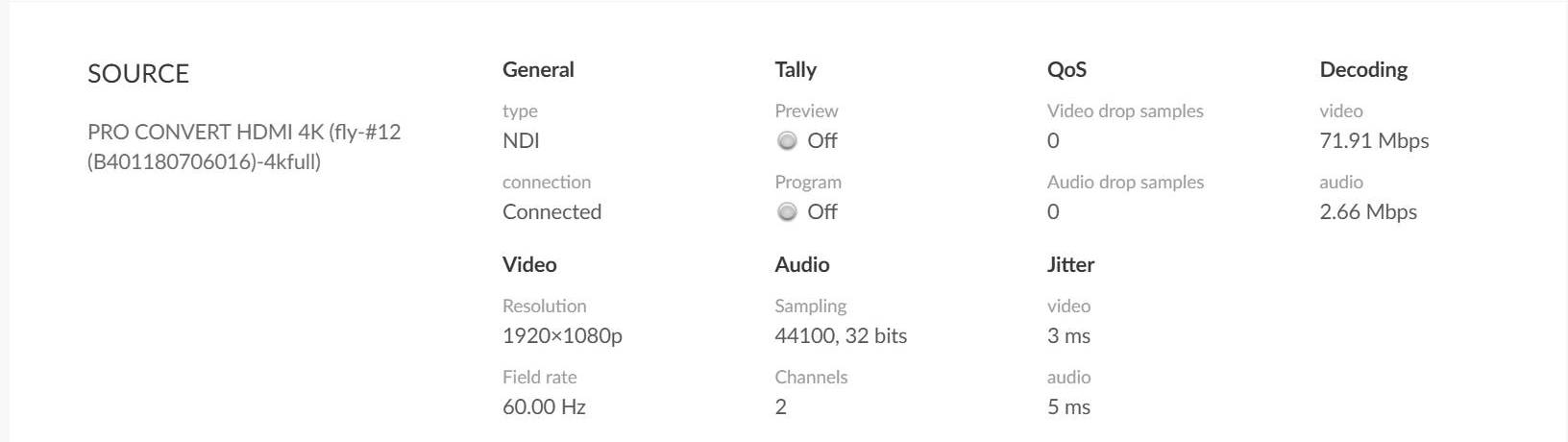
View source signal status
To modify source settings, go to the Sources tab. The parameters displayed on this section vary depending on the signal type.
![]()
-
General displays basic source information.
- Type displays the stream type currently being decoded.
- Connection indicates whether the decoder is connected to the stream.
-
Tally displays program/preview status.
Note: This parameter is supported for NDI® sources only.
- Preview indicates whether the source is in preview state.
- Program indicates whether the source is in program state.
-
QoS displays packet loss statistics for the previous second.
Video drop samples shows dropped video samples in the previous second.
Audio drop samples shows dropped audio samples in the previous second.
-
Decoding displays decode throughput for the previous second.
- Video: Video decode rate
- Audio: Audio decode rate
-
Video displays stream video information.
- Resolution: the resolution of the decoded data stream.
- Field rate: the field rate of the decoded data stream.
-
Audio displays stream audio information.
- Sampling: Sampling rate and bit depth
- Channels: Number of audio channels
-
Jitter displays the difference between estimated arrival time and actual receive time.
- Video: Video frame jitter
- Audio: Audio frame jitter
-
General displays basic source information.
Viewing Device Status
Monitor the real-time operating status of the device in the Dashboard tab.