- Log in to the Web UI using your username and password.
- Click the down arrow icon
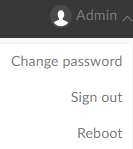 next to the username in the upper right corner, and select Change Password.
 - In the pop-up window, enter the old password, new password, and confirm the new password.
Passwords are case-sensitive and can be 1-32 characters long, including A-Z, a-z, 0-9, and special symbols _~!@#$%^&*-+=.
- Click OK.
Method 2: Administrator Changes Password for a Specified User
- Open the Web UI and log in with an administrator account. After successful login, you can change the passwords of all users.
- Click the System tab.
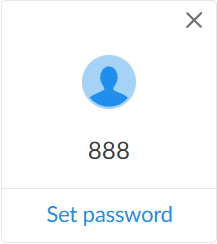
- Move the cursor to the user whose password needs to be changed, and click Set Password.
![]()
- In the pop-up window, enter the old password, new password, and confirm the new password.
Passwords are case-sensitive and can be 1-32 characters long, including A-Z, a-z, 0-9, and special symbols _~!@#$%^&*-+=.
- Click OK.