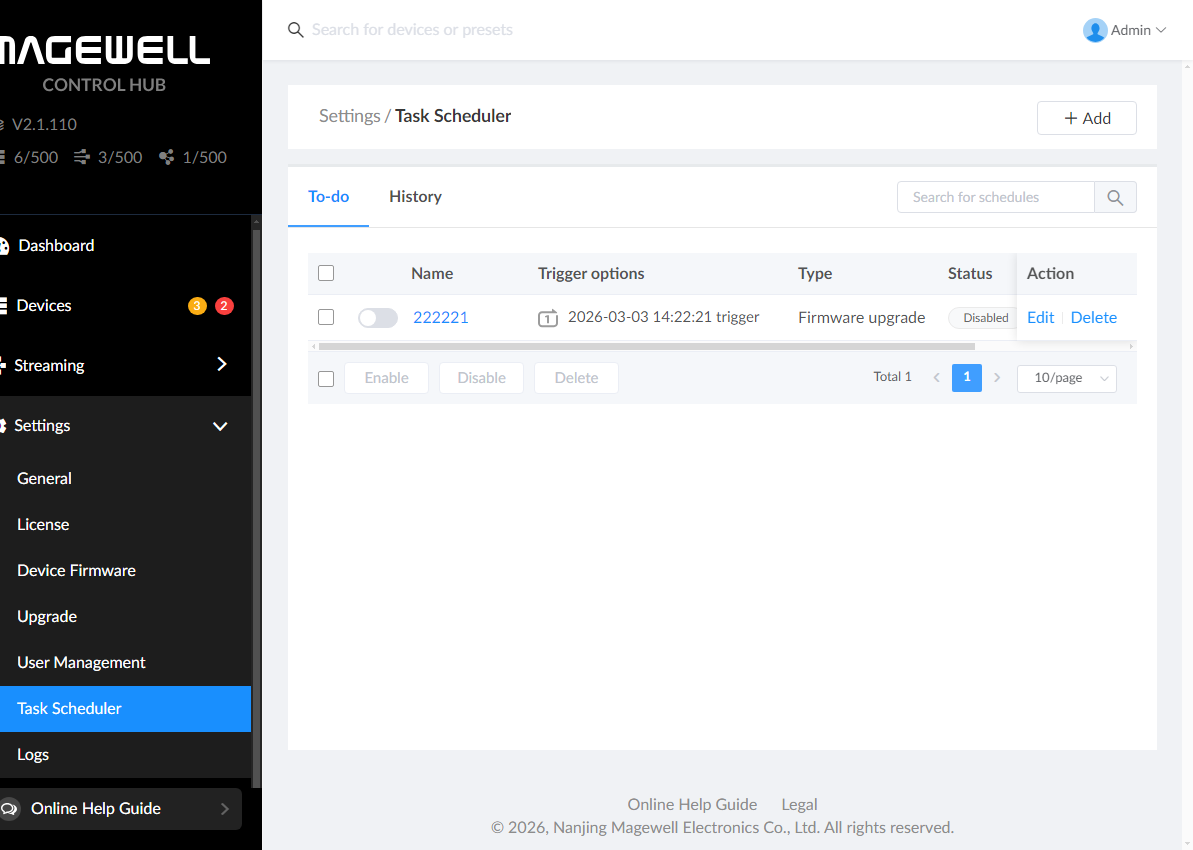
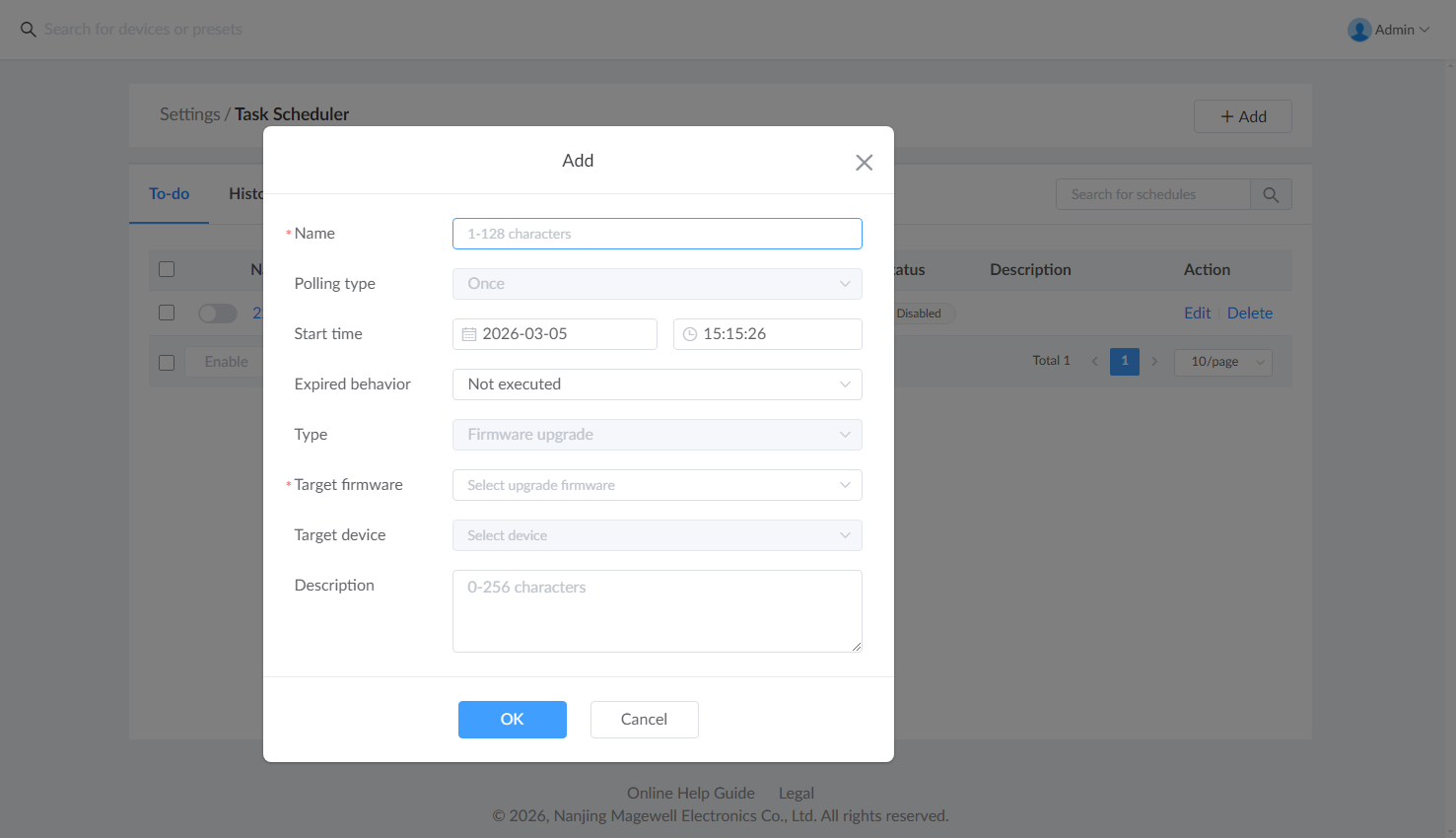
- In the left sidebar, click "Settings > Task Scheduler"
- View scheduled tasks:
- To-do: View tasks that are waiting to be triggered or currently running
- History: View historical records of completed, successful, or failed tasks for auditing purposes
- Batch operations: After selecting multiple tasks, you can click the buttons below to perform batch "Enable", "Disable", or "Delete" operations
- Trigger options: Intuitively displays the scheduled trigger time of the task
- Type: Currently supports "Firmware Upgrade"
- Status: Indicates the current running status of the task, such as "Running", "Completed", "Failed", etc
- Action: Edit or delete the current task by clicking the corresponding "Edit" or "Delete" button
- Description: Record background information about the task
- Quick search: Use the search box in the upper right corner to quickly locate specific tasks by name
- Enable: Enables the checked task, allowing it to be triggered at the scheduled time
- Disable: Disables the checked task, preventing it from being triggered
- Delete: Permanently deletes the checked task from the system