- Enter the Settings > General page from the navigation pane.
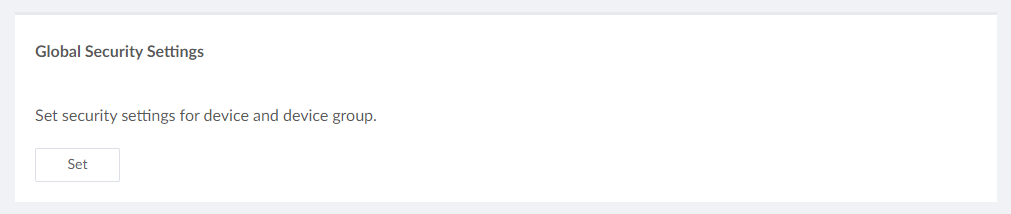
- Set global security settings.
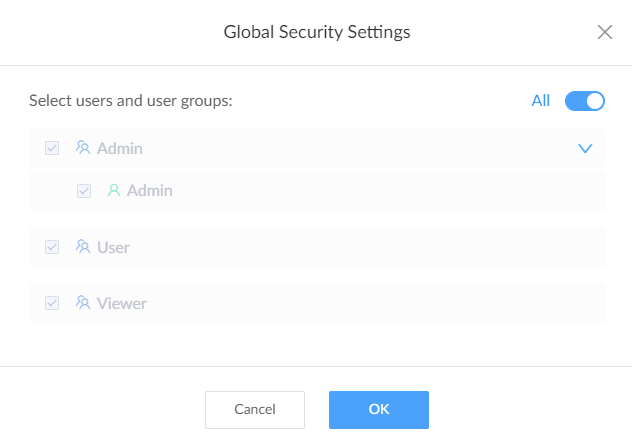
- Click Set, specify scope of uses and groups for global security settings. As is the default members who have access for devices and device groups.
By default, devices and device groups inherit global security settings.
Device groups that choose to inherit from parent configuration and devices that are not joined to the group use the global security configuration.
If you modify the global device security settings, the security settings of all device groups and devices that inherit the global device security settings will change accordingly.Devices which are waiting for approval or being rejected inherit the global device security settings.
- Click OK to save the configuration.
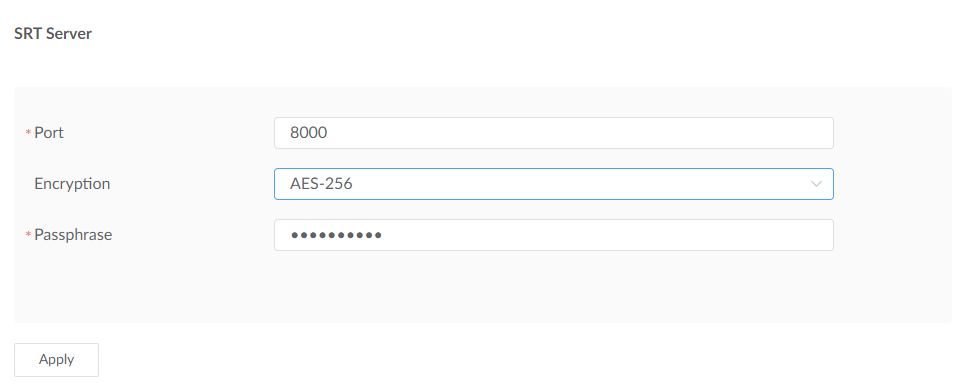
- Set SRT Server.
- Specify SRT Port ranging from 1 to 65535, and the default value is 8000.
- Specify SRT Encryption algorithms including AES-128/192/256 with 128-bit, 192-bit, or 256-bit key sizes respectively. Then a string of Passphrass containing 10 to 79 characters is required. By default, SRT streams are not encrypted.
- Click Apply to save the changes.
 Any of SRT server changes require rebooting of the Control Hub to take effect.
![]()
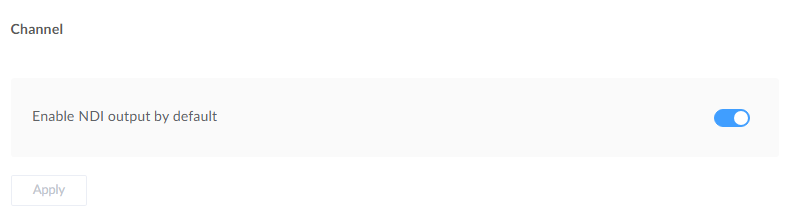
- Enable NDI Stream Switch for Channels.
By default, the NDI output function is enabled when a channel is added; that is, the NDI stream output function is turned on. Conversely, if not specified otherwise, the NDI stream output function is disabled.
![]()
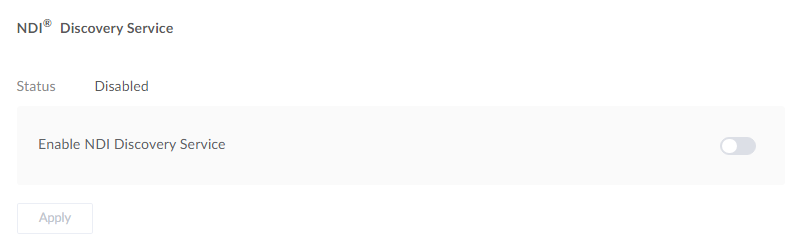
- Set NDI® Discovery Service.
After enabling it, click "Apply". This feature is off by default.
![]()
- Set NDI® Access Manager.
The Control Hub's built-in discovery service can be used as a discovery server, or you can configure and use other NDI® discovery server(s) based on your actual environment. If there are multiple addresses, separate them with commas.
Specify the "Server IP", which is a string of one or more comma-separated server IP addresses.
Specify the "Machine name", which is a string of A-Z, a-z, 0-9, space, and _-#. Once set, the NDI® stream name sent by the channel will be "Machine-name(Channel-Name)".
Specify the "Group name", which is a string of A-Z, a-z, 0-9, and special characters, including _-. The default group name is "public". Group names are case-insensitive and can include multiple values separated by commas.
Specify the "Transport Mode": options are
Auto(default),UDP (Unicast),UDP (Multicast),RUDP (Unicast),TCP (Single Connection),TCP (Multi-Connection).- UDP (Unicast): Transmits to receivers via UDP protocol in unicast mode. Achieves lower latency, and multiple receivers can simultaneously receive streams without interfering with each other.
- UDP (Multicast): Transmits to receivers via UDP protocol in multicast mode. Suitable for scenarios requiring simultaneous transmission to multiple receivers. The encoder only needs to send one stream, reducing CPU utilization. Parameters:
- Multicast IP: 224.0.0.0 ~ 239.255.255.255
- Multicast Mask: Set according to the network configuration. Valid values range from 255.0.0.0 to 255.255.255.252.
- Time to Live (TTL): 1 ~ 255 (default: 1)
- RUDP (Unicast): Transmits to receivers via RUDP (Reliable UDP) in unicast mode. Optimizes connections, maximizes bandwidth utilization, and adapts to weak network environments by enhancing transmission at the application layer.
- TCP (Single Connection): Establishes a single TCP connection with receivers, transmitting audio/video packets through the same port. Provides lower CPU utilization compared to UDP (Unicast) and TCP (Multi-Connection) under similar streaming conditions. Offers more reliable connections and ensures stable 4K NDI streaming.
- TCP (Multi-Connection): Establishes multiple TCP connections with receivers, transmitting audio/video packets through different ports. Performs better in complex network environments while maintaining TCP's reliability advantages, ensuring stable 4K NDI streaming.
![]()
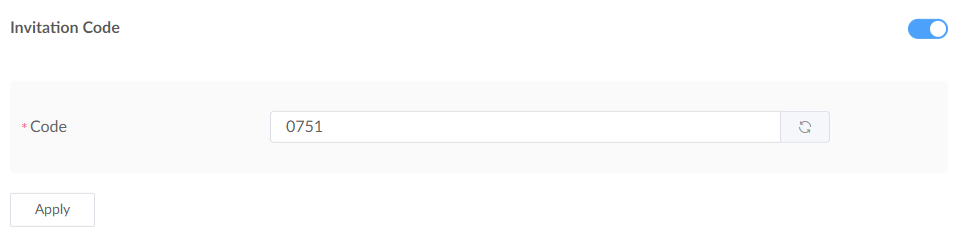
Set invitation code.
Set invitation code on Control Hub.
- Toggle Invitation Code switch on and enter a 4-digit number, or click
 to get a
random number automatically.
to get a
random number automatically. - Click Apply to save the changes.
![]()
- Toggle Invitation Code switch on and enter a 4-digit number, or click
Set invitation code on device Web UI.
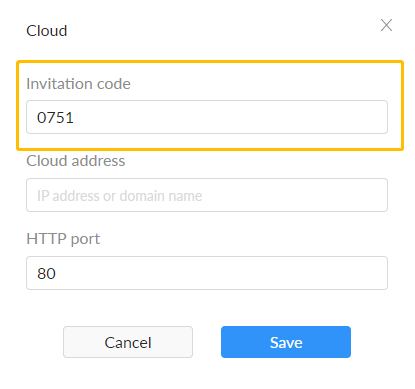
The devices which need to be managed remotely should set the same code once the invitation code is set on the Control Hub. Take Ultra Encode as an example. Enter the invitation code in the yellow box shown below.![]()
- Set Certificate: HTTP/S.
- Enter the Settings > General page from the navigation pane.
- Modify HTTP/HTTPS settings.
-
The default port of HTTP is 80. Modify the port number ranging from 1 to 65535, based on your network condition, then click Apply to save the changes.
- Secure the Control Hub with HTTPS.
For HTTPS changes to take effect, a reboot of Control Hub is required.
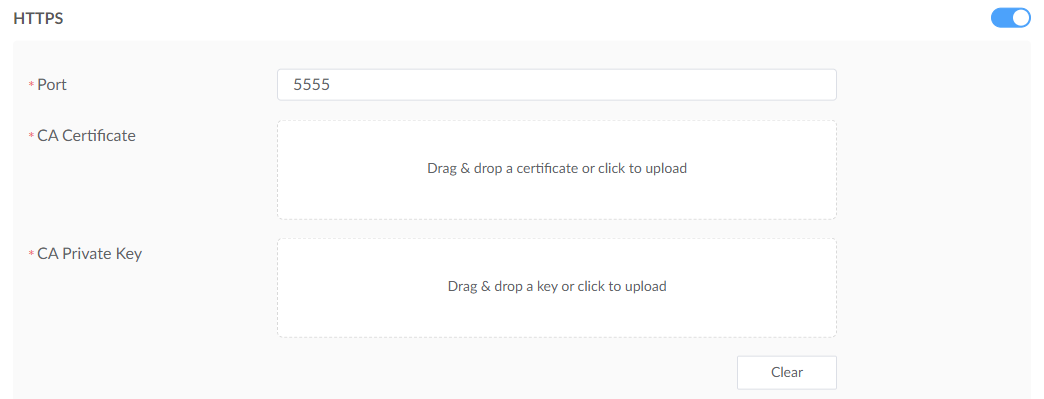
- Turn on HTTPS, then
- specify the port number ranging from 1 to 65535 for HTTPS. The default port is 443.
- Import a CA certificate and private key into Control Hub.
Renew certificates by uploading the new files that you want to, without removing existing ones.
![]()
- Clear HTTPS settings: click on the "Clear" button
to remove all HTTPS settings.
HTTPS will be restored to its default state. HTTPS will be turned off, the certificate and private key will be removed, and the port will be restored to 443.
- Click Apply to save the changes.
-
- Re-log into Control Hub.
For example, set HTTP port to 44, HTTPS port 344. Open your Web browser and type http://IPaddress:44, or https://IPaddress:344, to access Control Hub.
- Manage user password strength checker.
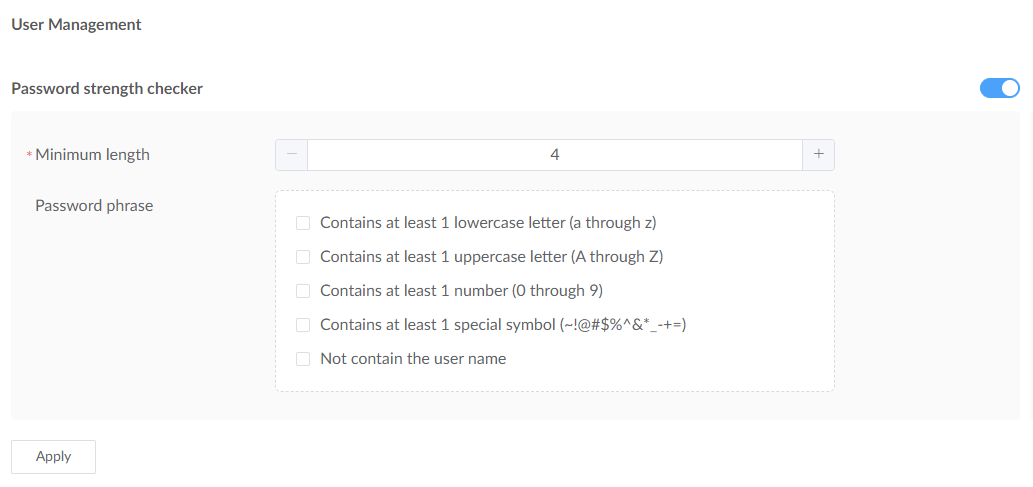
Turn on the Password strength checker switch in the System section, and specify the Minimum length and Password phrase.
Specify the Minimum length from 4 to 32, 4 by default.
Specify the the strength of a password that a user enters based on the following rules:
- Contains at least 1 lowercase letter (a through z)
- Contains at least 1 uppercase letter (A through Z)
- Contains at least 1 number (0 through 9)
- Contains at least 1 special symbol(~!@#$%^&*_-+=)
- Not contain the user name
![]()
- Set session expiration.
You can turn on Session never expires in the Sessionsection to stop being logged-out automatically. It is off by default.
You can set Expiration time between 5 to 1440 minutes when the Session never expires is off. The default expiration time is 30 minutes.
- Click Apply to save the changes.
![]()
- Reset Control Hub.
Admin accounts can click the Reset all settings in the System section.
- Be cautious that all parameters will go back to their default values after reset, and can not be undone.
- Exported liceses file will be removed from Control Hub.
- The communication port number will be restored to use the default value.
- It is recommended that you click Export settings....
PRECAUTIONS
- Importing settings...: the .dat file is supported only.
Settings of 2FA, HTTP/HTTPS, device firmware and license file can not be configured through the import file, you need to manually set these features.
- Export settings...: click to export the configuraion
file of Control Hub as a .dat file.
Settings of HTTP/HTTPS, device firmware and license file can not be saved.
- Reboot Control Hub.
Admin accounts can click the Reboot in the System section.
![]()